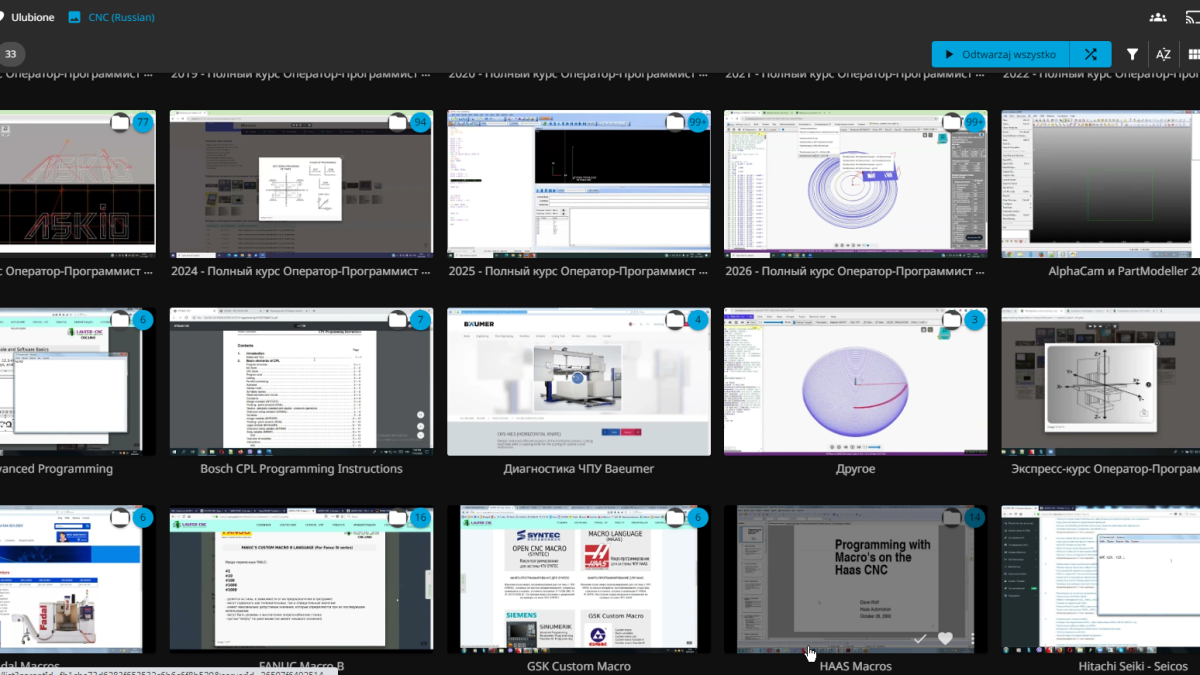
TRASA3 class recordings are now available in a dedicated video library at video.trasa3.download. The catalog already contains more than 1,700 videos covering CNC machine operation and programming, control system diagnostics, setup work, CAD/CAM, and other subjects included in TRASA3 training programs.
Recordings previously opened in an embedded player on each class page. That approach worked well for individual lessons, but a growing archive called for better browsing and easier access across devices. The new library runs on Jellyfin, a media server platform designed to organize and stream video collections. TRASA3 course pages remain in place: the syllabus, lesson topics, and class lists still provide the learning structure, while each available recording opens in the video library.
Two ways to open a recording
The first option follows the existing course workflow. Open a course in the TRASA3 training system, select a class, and use its video button. When that class has been linked to the new library, the page takes you directly to the correct recording. There is no need to search for the filename.
You can also work with the full archive at TRASA3 Training Video Library. The library provides sections for browsing, title search, and quick access to material you have already opened.
Your existing TRASA3 account is used for sign-in. The video library does not require a separate registration. A video profile is created automatically when active training access becomes available, and the password is synchronized with the TRASA3 account.
What happens when access expires
The video profile remains available after the paid access period ends. You can still sign in and browse the catalog, but playback is disabled. This makes it possible to check the account, locate a class, and decide which material you need before extending access.
Playback permission is restored automatically during system synchronization after the TRASA3 access period has been extended. You do not need another account, new links, or a new favorites list.
An older class page may display a message that the video is unavailable. This means the recording has not yet been matched unambiguously with an item in the new catalog. Such entries are left unlinked until they can be checked, preventing a class page from opening a different recording with a similar date or filename.
Watch in a browser, on a phone, or on a TV
The quickest option is to open the library in a current browser on a computer or phone. Jellyfin supports current versions of Firefox, Chrome, Safari, and Edge. Apps are also available for Android, iOS and iPadOS, Android TV, Fire TV, Roku, WebOS, Tizen, and Xbox. The current list of official clients is available on the Jellyfin website.
When an app asks for a server address, enter:
https://video.trasa3.download
Then sign in with your TRASA3 credentials. Do not save your password on a shared device, and sign out when you finish. If the app shows a list of previously configured servers, select TRASA3 Video.
What changes for course participants
Course programs and lesson order remain unchanged. The course page is still the best place for structured study because it shows the topic, class number, session date, and recording length. The video library adds catalog navigation and a player designed for a larger archive.
- Every linked recording has a stable internal identifier.
- A class page opens the relevant video instead of the catalog home page.
- The training system and video library use the same account.
- The catalog remains visible when access expires, while playback is disabled.
- Playback is restored automatically after access is extended.
- Recordings can be watched in a browser or through Jellyfin apps on supported devices.
Some older classes were stored under different filenames or on earlier video platforms. During migration, the matching process checks the filename, course, class number, date, and duration. Recordings with a unique match have already been linked. The remaining entries will be added after manual verification.
Getting started
- Sign in to your TRASA3 account.
- Open the training system and select a course, or go directly to the Training Video Library.
- Use your TRASA3 credentials to sign in to the library.
- Open a recording. Playback is available while your training access is active.
For regular study, starting from the course page keeps each recording connected to its topic and position in the program. Direct access to the video library is useful when you want to browse the archive or continue with material you have already located.